ArcMap: Core Component of ArcGIS Desktop
What is ArcMap?
ArcMap is a primary desktop applications for GIS professional. It is a central application used in ArcGIS Desktop, from Esri. It is primarily used for creating, analyzing, editing, and visualizing spatial data.
Core Features and Functions
- Spatial Analysis: Perform geographic analysis such as buffering, overlay, and Geoprocessing.
- Map Creation: Design and produce detailed maps combining spatial and tabular data.
- Data Editing: Edit and update spatial datasets like Shapefiles or Geodatabases.
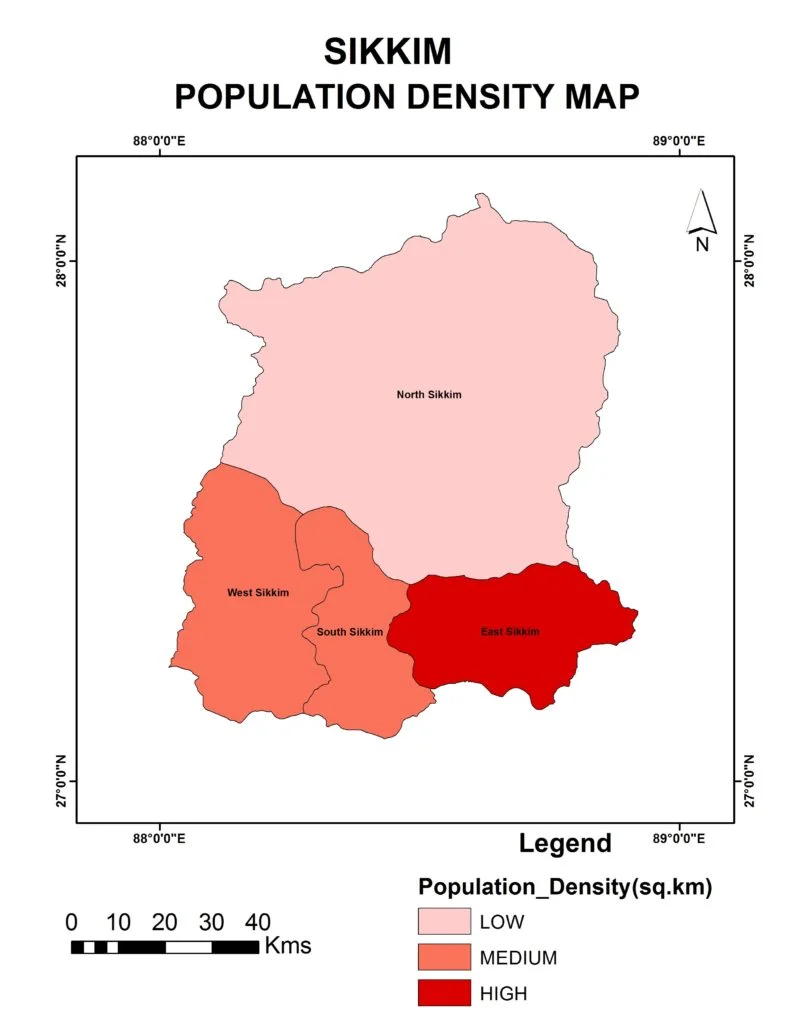
- Cartographic Tools: Create professional-quality map layouts with legends, scale bars, and north arrows.
A Quick Tour of ArcMap
How to use ArcMap Software
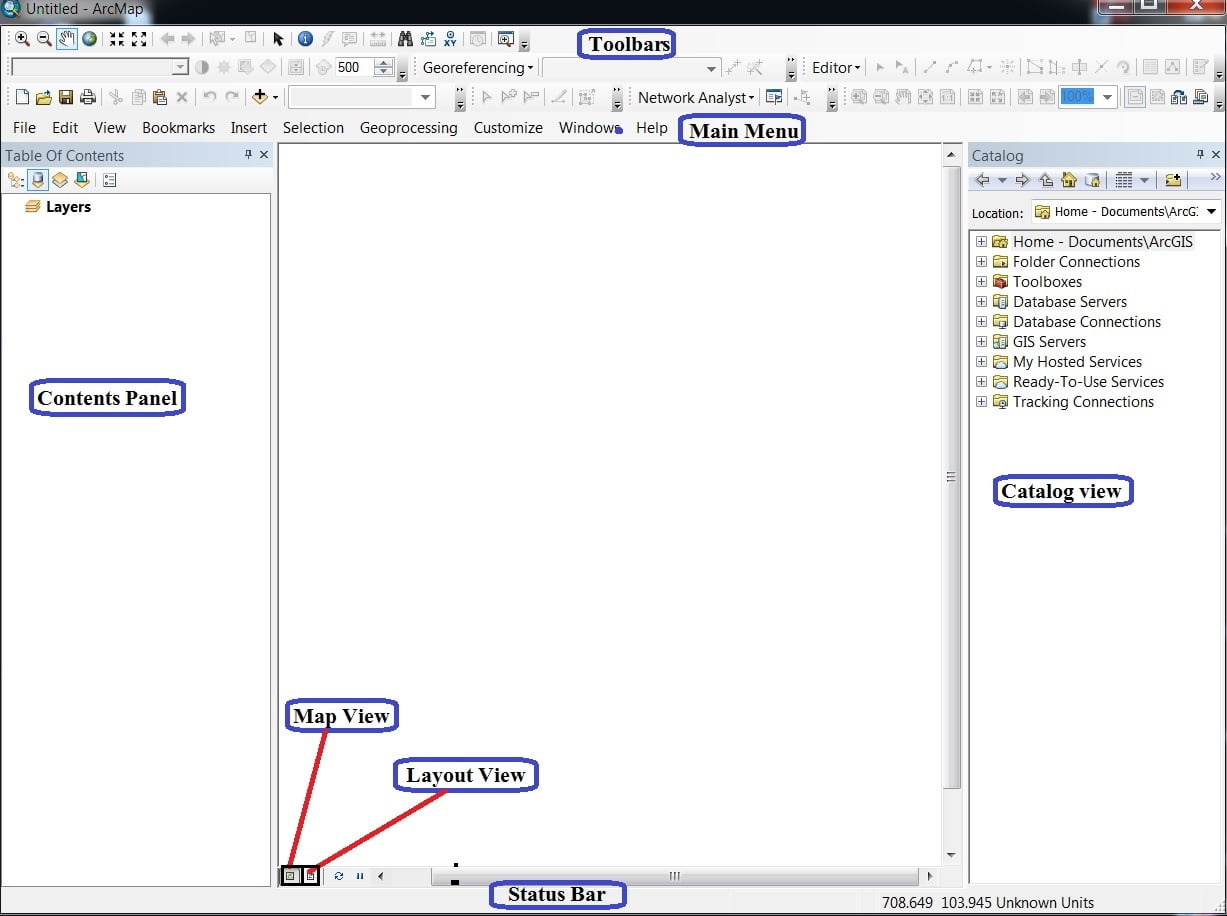
Menu bar
The Main menu helps you to perform a group of related tasks.

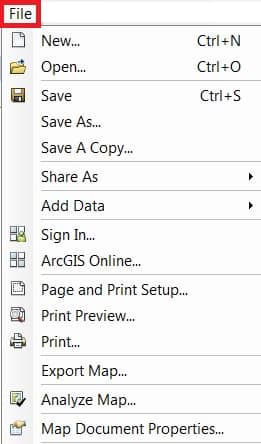
File Menu:
The File menu allow to Add Data, Open, Save, Print, Export project.
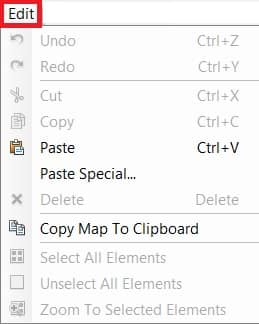
Edit Menu:
The Edit menu provides most of the native tools needed to edit layer attributes or geometry. It provides tools are: Cut, Copy, Paste Features.
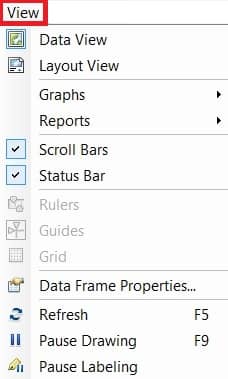
View Menu:
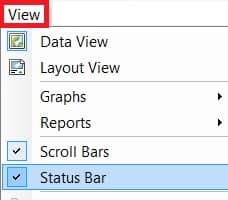
The View is the most impotent menu bar in ArcGIS. This menu allow to switch data view to layout view, also activate and deactivate scroll and status bar, create graphs and reports.
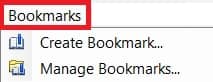
Bookmarks Menu:
Bookmarks help Create and Manage your project bookmark.
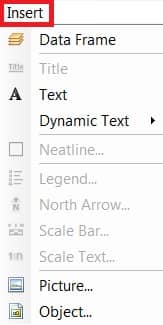
Insert Menu:
Insert menu basically use for Layout, like; Legend, North line, Scale bar, etc.
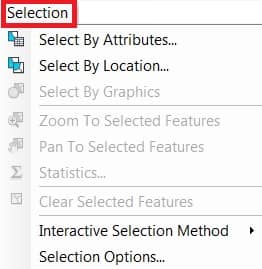
Selection Menu:
When you select features with the selection tools, the Select by graphs command or the edit tool.
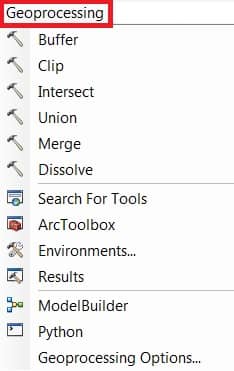
Geoprocessing Menu:
Geoprocessing menu shortcut of perform of some geoprocessing analysis. Like; Buffer, Clip, Union, Intersect, etc.
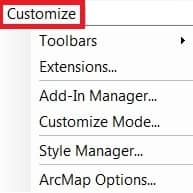
Customize Menu:
Customize menu one of the most important menu bar in ArcGIS. You can manage all the Toolbars, activate or deactivate Extensions.
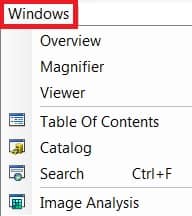
Windows Menu:
Windows menu helps to activated some important windows or panel, like; Table Of Contents, Catalog, Search.
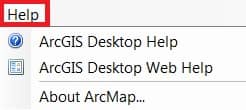
Help Menu:
Help menu helps you to learn about ArcGIS desktop.
ArcMap Main Feature
Three primary features are necessary to perform any kind of task in ArcMap.
- Table of contents
- Catalog
- Search
In the Windows menu, 3 option is available.
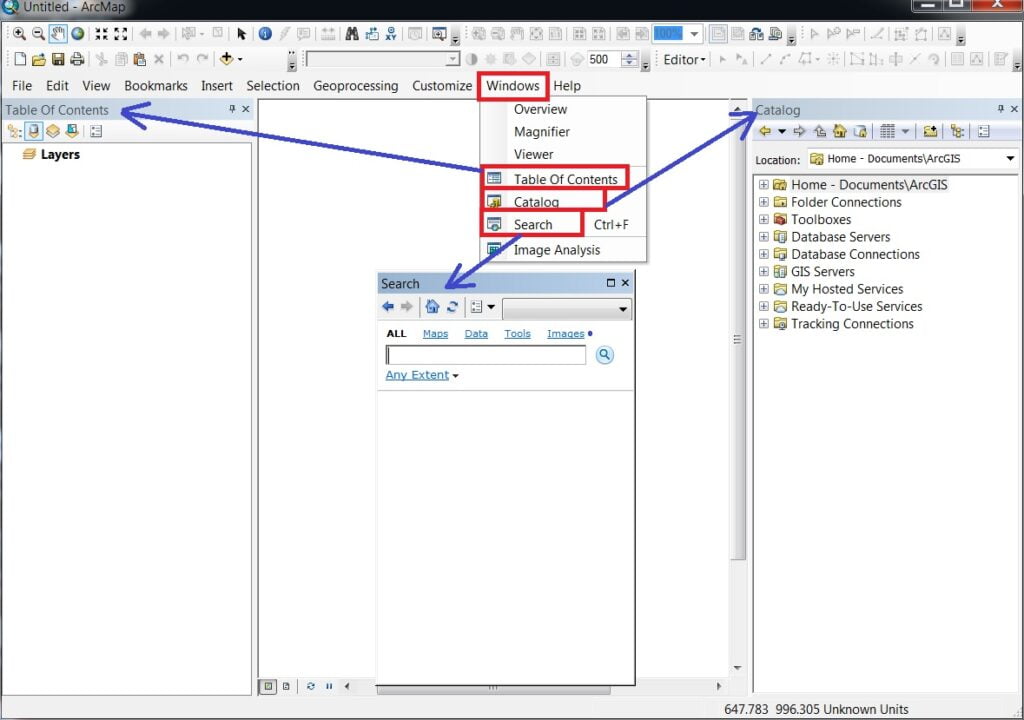
Table of Contents
The Table Of Content (TOC) lists all the layers on the map and shows what the features in each layer represent. Table of contents helps you manage the display order of map layers and symbol assignment, as well as to set the display and other properties of each map layer.
Catalog
The Catalog window provides a tree view of file folders and geodatabases. File folders are used to organize your ArcGIS documents and files. Catalog window is used to organize and manage various types of geographic information as logical collections—for example, the data, maps, and results of current GIS projects that you work with within ArcGIS.
Open ArcMap Application and Connect Folder:
2. Navigate to the Folder Connections node > Right-click and choose Connect. To Folder > choose your Folder and OK.
Once you have established a folder connection, you can use the Catalog window to navigate folder, show your data or map.
3. Add data to ArcMap by dragging datasets into the data frame (Right-click an item and select Item Description to view and edit its metadata).
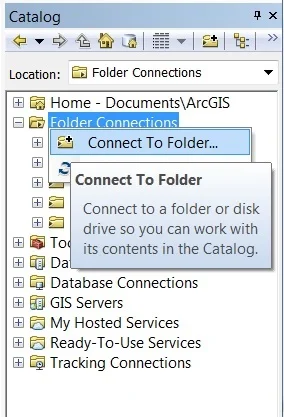
1. Open ArcMap application, a new untitled map open > Click Catalog tool from the Standard toolbar. Now see the Catalog window opens on the right side.

Search
The Search box helps you to search and particular features within a second. ArcGIS includes the ability to search for GIS content and to put it work quickly—for example, by adding a search result to your map or by inserting a result item into a geographic operation.
Toolbar
The ArcGIS toolbars is located just below the Menu bar.
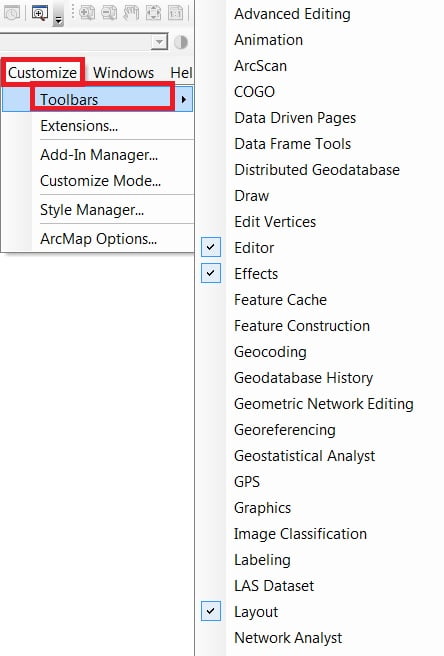
Open Toolbar, Click Customize on the main menu and point to Toolbars. Check a toolbar to show it.
Map view
In ArcMap map / Data view, the map is the data frame.
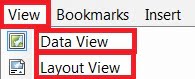
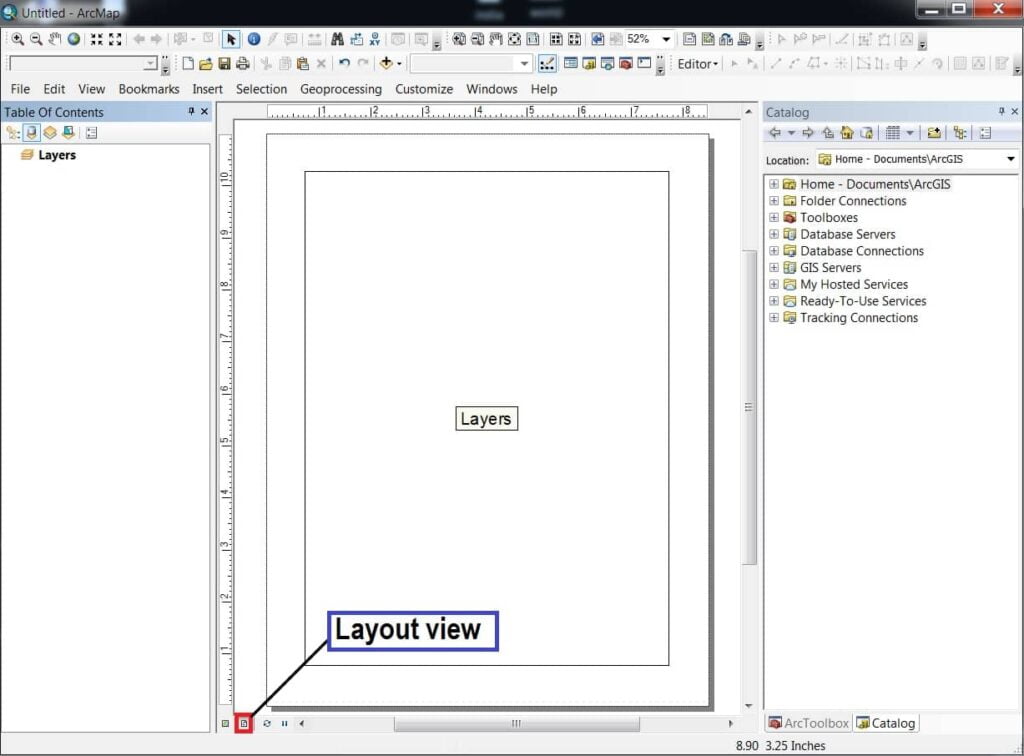
Menu bar dropdown View and select Data view or Layout view.
Layout view
When you’re preparing your map’s Layout, you’ll want to work with your map in page layout view. A page layout is a collection of map elements (such as a data frame, map title, scale bar, north arrow, and a symbol legend) arranged on a page.
ArcToolbox
ArcGIS Toolbox is a branch of tools and toolset to perform many tasks.
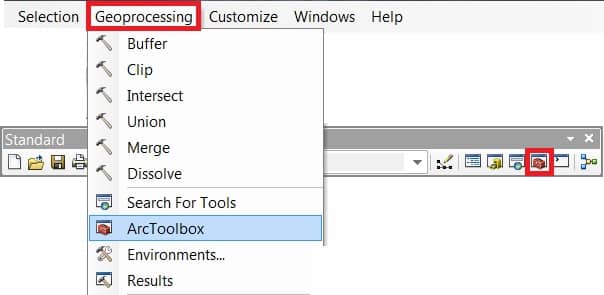
Open the Arc Toolbox window with the Arc Toolbox button, found on the Standard toolbar or by clicking Geoprocessing > ArcToolbox.
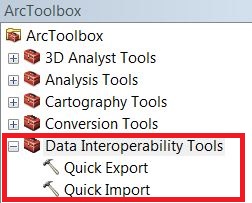
To add any tools to the ArcMap, click the ‘+ ‘sign in ArcToolbox and double click it.
Status Bar
The View menu allows you to hide or display the status bar. Click View > Status Bar.
ArcMap Tutorial
Georeferencing in ArcMap
Perform Ground to Image Georeferencing.
Perform Image to Image Georeferencing.
Create Shapefile
Shapefiles are simple, non-topological vector format for storing the Geometric location and attribute information of geographic features.
A Shapefile is one of the spatial data formats that you can work with and edit in ArcGIS. Geographic features in a Shapefile can be represented by points, lines, or polygons.
Create Shapefiles (Vector file) in ArcMap.
Digitization (Raster 2 Vector Conversion)
The Digitization is the process of converting information into a digital forms.
Layout
Layout is a decoration, and its final step for mapping.
A page layout is a collection of map elements organized on a virtual page designed and map printing. Common map elements include one or more data frames, a scale bar, north arrow, map title, and a legend. For geographic reference, you can add grids or graticules.
Save and Open a Map Document
When you save a map you have created in ArcMap, it will be saved as a file on the disk. A filename extension (.mxd). In later sessions, you can work with an existing .mxd file by double-clicking the document to open it.
ArcMap Online
In the ArcGIS application, and go to the Standard Toolbar. Select Add Data Button, and choose Add Data From ArcGIS Online.
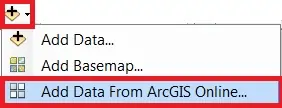
Now appear ArcGIS Online Window, search data in Search box.
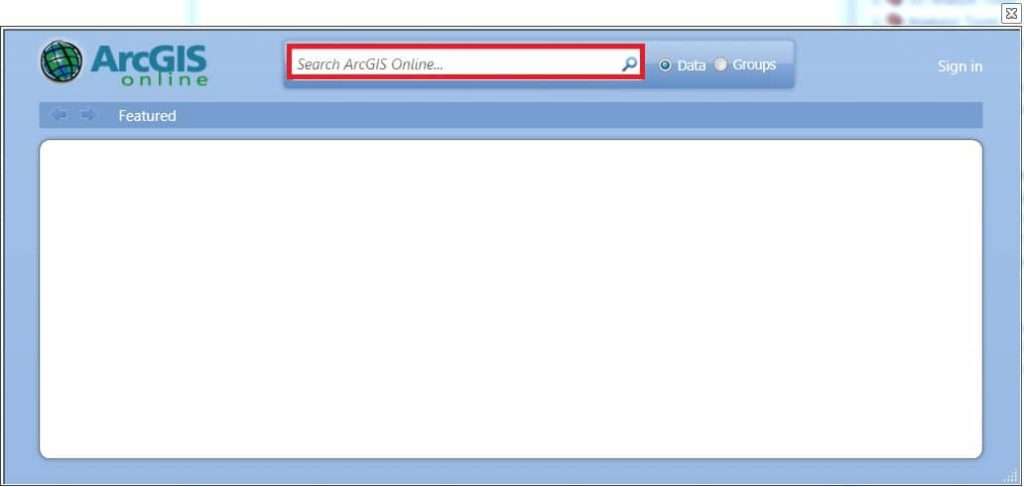
For ex.- search ‘USA Agricultural Data’, and show the all Agriculture related Data. Now you can choose your required data, and click (2) Add button. You can also show the full details of data, just click (1) Details button.
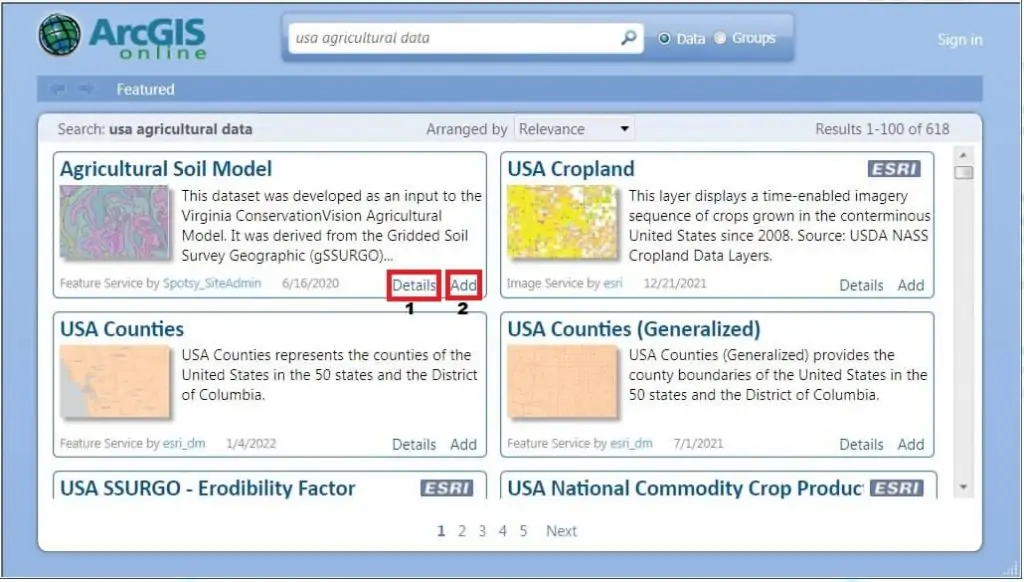
In some cases you can’t use to online Data, especially ESRI marking Data. First Sign in, then add this type of data.
Differences: ArcMap vs ArcGIS Pro
| Feature | ArcMap | ArcGIS Pro |
|---|---|---|
| Architecture | 32-bit | 64-bit |
| Performance | Slower | Faster, more stable |
| Multiple Layouts | No | Yes |
| 3D Support | Limited (via ArcScene) | Full 3D integration |
| Cloud Integration | Weak | Strong (ArcGIS Online, Portal) |
| Licensing | Named or concurrent | Named user (via ArcGIS Online/Enterprise) |